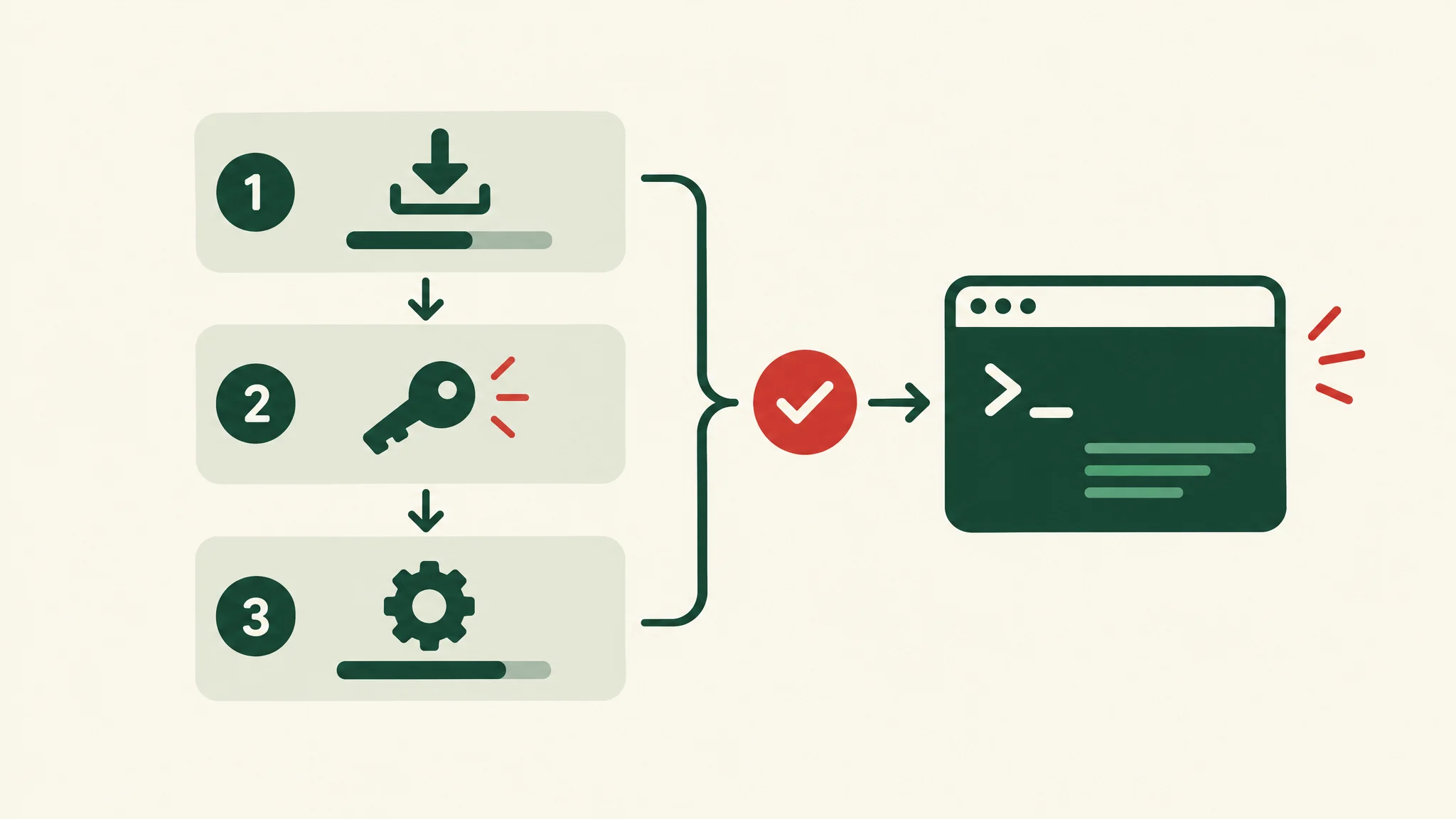
Hermes Agent is open-source software you host
Hermes Agent is an open-source agent from Nous Research, released under the MIT license. Its messaging gateway connects the agent to chat platforms, including Slack. The model is a configuration choice rather than a fixed part of the product, so you can use a hosted provider or your own. If you are new to the software, read what Hermes Agent is first.
A Slack agent is a software setup, not a finished product you install once. The Slack configuration takes an afternoon. The company decisions take longer. This guide follows the official Hermes Slack documentation and adds the checks we use before a team relies on an agent.
Decide these before you connect Slack
- Task: The one job the agent should do first, with a result someone can check.
- Channels: Which channels the agent can read. Public and private channels need different Slack permissions, and the bot joins only the channels it is invited to.
- People: Who can use the agent, and whether it answers in direct messages, channels, or both. Hermes needs an explicit list of allowed Slack members.
- Approvals: Which actions need a person to approve them. A reply that stays in Slack carries less risk than a change to a shared record or a message sent to a customer.
- Hosting and model costs: Where the agent runs, which model it uses, and who pays for model usage.
- Failures: What the agent does when a model call, a file read, or a connected service fails, and who gets told.
Before you start
You need Hermes installed on the machine that will run the agent, with a working model provider. Our Hermes Agent installation guide covers this. You also need permission to create and install apps in your Slack workspace.
Classic Slack apps that use the RTM API were deprecated in March 2025, so create a new app.
Step 1: generate the Slack app manifest
The fastest route is the manifest Hermes generates. New apps should use Slack's Agent view:
hermes slack manifest --agent-view --write
This writes ~/.hermes/slack-manifest.json with the scopes, events, and slash commands Hermes needs. In Slack's app settings, choose Create New App, then From an app manifest, pick your workspace, and paste the file's contents.
Step 2: check the bot scopes
If you build the app by hand, or want to review what the manifest asks for, these are the bot scopes the docs list:
| Scope | Why the agent needs it |
|---|---|
chat:write |
Send messages as the bot |
app_mentions:read |
Detect when someone mentions it in a channel |
channels:history, channels:read |
Read public channels it is invited to |
groups:history |
Read private channels it is invited to |
im:history, im:read, im:write |
Direct messages |
mpim:history, mpim:read |
Group direct messages |
users:read |
Look up who sent a message |
files:read, files:write |
Read attachments and upload files |
Two optional scopes are worth knowing: groups:read to list private channels, and assistant:write to show a "thinking" status while the agent works. Without channels:history and groups:history, the bot works only in direct messages. Without files:read, it cannot read attachments.
Step 3: subscribe to events
Subscribe the app to these bot events: message.im, message.mpim, message.channels, message.groups, and app_mention. The documentation names a missing channel event as the most common cause of an agent that works in direct messages but not in channels.
Step 4: turn on Socket Mode and the Messages tab
Hermes uses Socket Mode, which connects over a WebSocket. The server needs no public web address, so the agent can run behind a firewall or on a private server. Enable Socket Mode and create an app-level token with the connections:write scope. It starts with xapp-.
Then open App Home and turn on the Messages tab. Without it, Slack shows people "Sending messages to this app has been turned off".
Step 5: install the app and copy the bot token
Install the app to your workspace. Slack then shows a bot token starting with xoxb-. If you change scopes or events later, you must reinstall the app before the change takes effect.
Step 6: add the tokens and allowed users
Add the tokens to ~/.hermes/.env:
SLACK_BOT_TOKEN=xoxb-your-bot-token
SLACK_APP_TOKEN=xapp-your-app-token
SLACK_ALLOWED_USERS=U01ABC2DEF3,U04XYZ5GHI6
SLACK_HOME_CHANNEL=C01234567890
SLACK_ALLOWED_USERS takes Slack member IDs, which you find in each person's profile under Copy member ID. Without it, the gateway denies all messages, which is the safe default. SLACK_HOME_CHANNEL is optional and sets where scheduled job results are posted. The docs recommend restricting the .env file to its owner (permissions 600) and rotating tokens periodically.
Step 7: start the gateway and invite the bot
Start the gateway to test it:
hermes gateway
For a company agent, install it as a service so it restarts with the machine:
hermes gateway install
sudo hermes gateway install --system   # Linux, starts at boot
The bot does not join channels by itself. Invite it to each channel where it should work with /invite @Hermes Agent.
How the agent behaves in Slack
| Where | What happens by default |
|---|---|
| Direct message | It answers every message |
| Channel | It answers only when mentioned, and replies in a thread |
| Thread | Once it is active in a thread, it follows replies without a new mention |
| Messages from other bots | Ignored |
You can change this in ~/.hermes/config.yaml. Three settings matter most for a company workspace:
strict_mention: truemakes every channel message need a fresh mention, so the agent never joins a thread uninvited. Useful in busy channels.free_response_channelslists channels where it answers without a mention, such as a dedicated help channel.allow_botsstays atnoneunless you deliberately want several agents talking to each other. The docs warn that two bots that answer everything will answer each other.
Slash command replies are visible only to the person who ran them. Slack blocks slash commands inside threads, so Hermes accepts the same commands with a ! prefix there, such as !stop or !model.
Set approvals before the agent can act
When the agent wants to run a command flagged as risky, Slack shows Approve and Deny buttons. If buttons cannot be delivered, the agent asks you to reply !approve or !deny. The security docs describe three approval modes:
- smart (default): a second model approves low-risk commands, denies clearly dangerous ones, and asks a person about the rest.
- manual: a person approves every flagged command.
- off: no approval prompts. Avoid this in a shared workspace.
An approval request expires after five minutes and is then denied. Scheduled jobs deny flagged commands by default. For a team agent, we suggest manual mode at first, and running the agent's commands in Docker rather than directly on the server. Our guide to human-controlled AI workflows covers how to decide which actions need a person.
Remember that every member on the allowlist has the same access to the agent's tools. If some people need more access than others, run separate profiles with separate Slack apps.
Test with a small group first
Use a private test channel and a few people before you open the agent to the wider team. Check that:
- A permitted user can complete the task in Slack.
- A user who is not on the allowlist gets no reply.
- A file attachment is read correctly.
- The agent says when required data is missing.
- A risky action shows an approval request, and denying it stops the action.
- Someone can stop or correct a wrong action, for example with
!stopin a thread.
Record the results. Repeat the test after any change to scopes, channels, approval settings, or the model.
Troubleshooting
| Problem | Fix from the docs |
|---|---|
| Works in direct messages but not channels | Add message.channels and message.groups, reinstall the app, and invite the bot |
| No reply in private channels | Add message.groups and groups:history, reinstall, and invite the bot |
| No reply in group direct messages | Add message.mpim, mpim:history, and mpim:read, then reinstall |
| "Sending messages to this app has been turned off" | Turn on the Messages tab in App Home |
not_authed or invalid_auth errors |
Regenerate both tokens and update .env |
missing_scope error |
Add the scope, then reinstall the app |
| Changed settings but nothing changed | Reinstall the app after any scope or event change |
Where the agent runs
The gateway runs as a background process. Hermes can run its commands locally, in Docker, over SSH, or in hosted sandboxes, and the documentation says the agent can run on a small virtual server.
A laptop is fine for a trial. A company agent should run on a server that stays on, with logs, a named owner, and a plan for restarts, updates, and credentials.
What a scoped project covers
A project of this kind usually defines the task, connects the agent to the channels and tools that task needs, sets the approval rules, tests the behavior, and agrees who maintains the agent after launch. Hosting, model usage, and any paid Slack or service plans are separate costs. For more ideas on what a team agent can do, see Hermes Agent use cases.
If you want a team agent in Slack, see our Slack AI agents service or discuss the scope with Kings Landing. We will confirm the task, access, and approval rules before recommending a build.