
Before you install
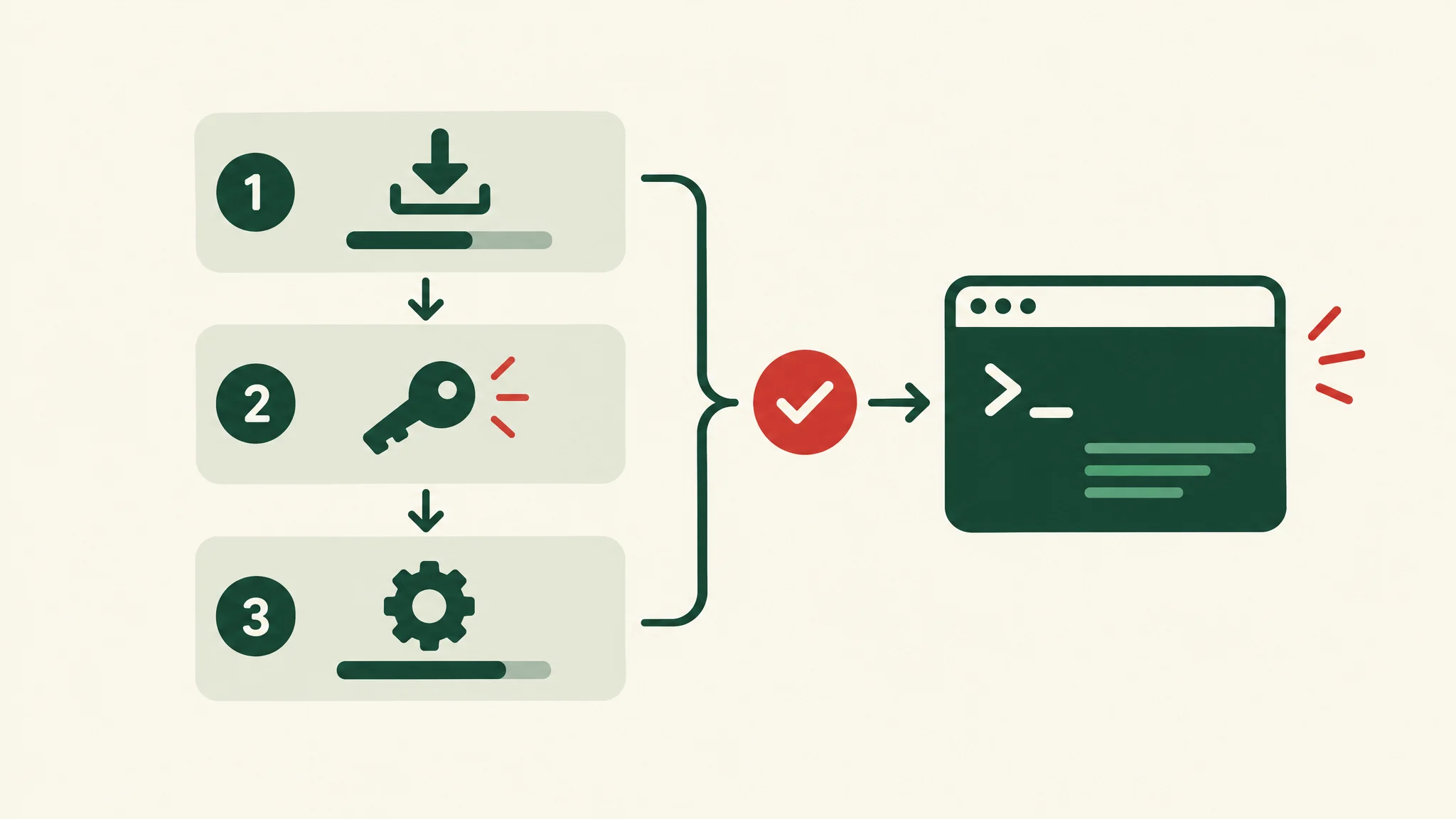
Hermes Agent installs in a few minutes, but a working setup needs three things: a supported machine, a model provider, and a decision about where the agent's commands will run. This guide follows the official installation docs and adds the checks we use before handing an agent to a team. If you are still deciding whether Hermes fits, start with what Hermes Agent is.
Supported platforms
The platform support page lists these as fully supported:
| Platform | Install method | Notes |
|---|---|---|
| macOS (Apple Silicon) | Desktop app or install.sh |
Intel Macs can use the command-line install |
| Windows 10 and 11 | install.ps1 or the MSIX desktop app |
The MSIX package needs Windows 11 22H2 or later |
| Linux and WSL2 | install.sh |
Tested on the latest Ubuntu and WSL2 |
| Docker | docker pull |
Update by pulling a new image |
The docs list installs through pip, uv tool install, Homebrew, and the AUR as unsupported. Use one of the methods above, even if a package manager offers a shortcut.
What you need
- Git, which the installer uses to fetch the source. The installer handles Python, Node.js, and the other dependencies itself.
- A model with at least 64,000 tokens of context. Hermes rejects smaller models at startup.
- An API key or account for your chosen provider, unless you run a local model.
Option 1: install the desktop app
On macOS or Windows, download the package from the Hermes website. On Windows, open the .appinstaller file with Windows App Installer. On macOS, open the DMG and copy Hermes.app to Applications. The desktop package includes the agent and its dependencies, so first launch does not need a build step.
Option 2: install the command-line version
On Linux, macOS, or WSL2:
curl -fsSL https://hermes-agent.nousresearch.com/install.sh | bash
On native Windows, in PowerShell:
iex (irm https://hermes-agent.nousresearch.com/install.ps1)
The script clones the source, installs pinned versions of Python, Node.js, ripgrep, and FFmpeg, and downloads a Chromium build for the browser tools. Add --skip-browser (or -SkipBrowser on Windows) to leave the browser out. On a server, --non-interactive skips the setup questions.
When it finishes, reload your shell and start Hermes:
source ~/.bashrc   # or source ~/.zshrc on macOS
hermes
If you later want the desktop app on the same machine, run hermes desktop.
Option 3: run Hermes in Docker
Docker keeps the agent and its commands in a container, which is a sensible default for a server. The Docker docs mount a host folder as the data directory, so your configuration and memory survive container restarts.
Run setup once:
docker run -it --rm -v ~/.hermes:/opt/data nousresearch/hermes-agent setup
Then start the messaging gateway in the background:
docker run -d --name hermes --restart unless-stopped \
  -v ~/.hermes:/opt/data -p 8642:8642 \
  nousresearch/hermes-agent gateway run
Two Docker details to know. hermes update does not work inside the container, so update by pulling a new image and recreating the container with the same data mount. And if you paste commands into a server, use SSH rather than a browser-based console, which the docs warn can corrupt pasted characters.
Choose a model provider
Run the setup wizard:
hermes setup
It offers three paths. Quick Setup signs you in to Nous Portal, Full Setup walks through every option, and Blank Slate starts with nothing configured. You can change any choice later with these commands:
| Command | What it sets |
|---|---|
hermes model |
Provider and model |
hermes tools |
Which tools are on, per platform |
hermes gateway setup |
Messaging platforms |
hermes config set |
Any single setting |
Hermes stores secrets such as API keys in ~/.hermes/.env and other settings in ~/.hermes/config.yaml. Keep the .env file out of shared folders and backups that others can read.
Use a local model with Ollama
To keep prompts on your own hardware, run a model with Ollama and add it as a custom endpoint in hermes model, with the base URL http://localhost:11434/v1. The local Ollama guide adds three requirements:
- Raise the context window. Ollama defaults to 2,048 tokens. Create a Modelfile with
PARAMETER num_ctx 64000and build a new model from it, or Hermes will refuse it. - Pick a model that supports tool calling. Without it, the agent can talk but cannot take actions.
- Plan for memory. The guide suggests 8 GB of RAM as a minimum and 32 GB or more for models of around 27 billion parameters and up.
Expect slower and less reliable tool use from small local models than from large hosted ones. Test the tasks you care about before you commit.
Start your first session
Run hermes for the classic interface or hermes --tui for the newer terminal interface. Try a task that touches the terminal, such as "list the five largest files in this folder". Useful commands from the start:
/newstarts a fresh session./modelswitches the model mid-session.hermes --continue(or-c) resumes your last session.
Hermes works in the folder where you start it. Start it in a test folder, not your home directory, until you know how it behaves.
Decide where commands run
By default, commands run directly on your machine. To keep them in a container, set the Docker backend:
hermes config set terminal.backend docker
An ssh backend runs commands on a remote server instead. The security docs also describe command approval. The default "smart" mode asks you before flagged commands run; switch to manual approval for anything sensitive. We cover approval design for company use in how to design human-controlled AI workflows.
Connect a messaging platform
To use Hermes from Slack, Telegram, Discord, or another chat app, run hermes gateway setup, then start the gateway with hermes gateway. To keep it running after you log out, install it as a background service with hermes gateway install. Our Hermes Agent Slack setup guide covers the Slack steps in full.
Move from another agent
If you used OpenClaw, Claude Code, Codex CLI, or Cursor, the installer offers to import your settings, memories, and skills. You can also run the import later. See Hermes Agent vs OpenClaw for the OpenClaw steps.
Update and uninstall
For a command-line install, update with:
hermes update
New installs follow the stable release channel, so updates move from one published release to the next. Desktop apps update through their own Update control. To remove Hermes, run hermes uninstall, and preview what it removes with hermes uninstall --dry-run first. See updating and uninstalling.
Troubleshooting
Run hermes doctor first. It checks your configuration and suggests fixes. For specific symptoms:
| Symptom | Likely cause | Fix |
|---|---|---|
hermes: command not found |
The shell has not reloaded its path | Run source ~/.bashrc or open a new terminal |
API key not set |
No provider configured | Run hermes model |
| Empty replies | Provider sign-in or model choice | Run hermes model again and pick a working model |
| A custom endpoint returns nonsense | Wrong base URL | Check the URL, including the /v1 suffix |
| Model rejected at startup | Context below 64,000 tokens | Raise the context, for example num_ctx in Ollama |
| The gateway gets no messages | Bot token or user allowlist | Run hermes gateway status and check the tokens and allowed users |
If those do not help, the docs suggest this order: hermes doctor, then hermes model, then hermes setup, then hermes sessions list and hermes --continue to recover your work.
Moving from a test to a team setup
A personal install and a team agent are different projects. Before others use it, decide who may message the agent, which tools and folders it may reach, which actions need approval, and who updates it. If you want help with that, see our Slack AI agents service.


